You downloaded a map, copied it into the saves folder, opened Singleplayer, and it isn't there. Minecraft gives no error message when this happens. It simply skips anything it doesn't recognize as a world. The good news is that the cause is almost always one of a short list of problems, and they are listed here in the order we would check them.
Start with one check. Open the folder you put in saves. If you see a file called level.dat right there, the folder structure is fine and you can skip to fix 4. If you see a zip file, another folder, or files you don't recognize, start at fix 1.
1. The map is still a zip file
Java Edition does not read worlds inside zip files. A Mattupolis.zip sitting in saves is invisible to the game. Extract it first: on Windows, right-click the zip and choose Extract All; on a Mac, double-click it. Then move the extracted folder into saves and delete the zip.
Some maps come as .rar or .7z archives. Windows 11 can open many of these on recent updates, and the free tools 7-Zip (Windows) and The Unarchiver (Mac) handle all of them.
2. The map is nested inside another folder
This is the most common cause by far. Map makers zip up their world folder, and when you extract it, Windows creates a new folder named after the zip and puts the world folder inside it. You end up with saves\Mattupolis\Mattupolis\level.dat, one level deeper than Minecraft looks.
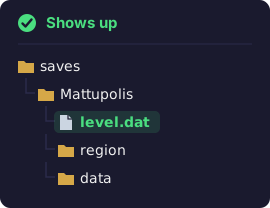
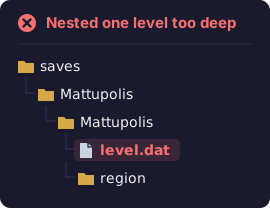
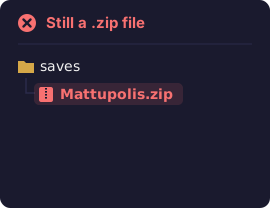
saves as a world when level.dat sits directly inside it. The other two layouts are both invisible in the game.To fix it:
- Open the folder you put in
saves. - Keep opening folders until you find the one that contains
level.dat. - Move that folder (the one holding
level.dat, not the file itself) directly intosaves. - Delete the empty outer folder that is left behind.
Some downloads bundle several worlds or extras, like a readme and a resource pack, in one archive. Apply the same rule to each world: every folder that holds a level.dat goes directly into saves.
3. The download isn't a world at all
Map sites list worlds, schematics, resource packs and data packs side by side, and it is easy to grab the wrong file. A build download in particular is often a schematic rather than a playable world. Check what is inside your download against this table:
| You see | What it is | Where it goes |
|---|---|---|
level.dat plus region (or dimensions) | A Java world | The saves folder, extracted |
level.dat, levelname.txt and a db folder | A Bedrock world | Zip its contents and rename the zip to .mcworld, or copy into Bedrock's minecraftWorlds folder |
pack.mcmeta plus an assets folder | A Java resource pack | .minecraft\resourcepacks (it can stay zipped) |
pack.mcmeta plus a data folder | A Java data pack | The datapacks folder inside one world |
A .schem, .schematic, .litematic or .nbt file | A schematic: a single build, not a world | Paste it into a world with WorldEdit, Litematica, or a structure block |
A .mcworld file | A Bedrock world | Open it with Minecraft Bedrock |
A .mcpack or .mcaddon file | A Bedrock pack or add-on | Open it with Minecraft Bedrock, then turn it on in the world's settings |
A .jar file | A mod (or a server) | The mods folder of a Fabric, Forge or NeoForge install |
If you wanted to play the map but downloaded a schematic, go back to the map's page and look for a separate world download. Some creators only release their builds as schematics.
4. You copied it into a different game folder
If the folder structure is right but the world still doesn't appear, the game is probably reading a different saves folder from the one you used. This happens when:
- Your launcher installation uses a custom game directory.
- You play through CurseForge, the Modrinth App, Prism Launcher or another launcher that gives each profile its own folder.
- You have more than one copy of Minecraft, for example an old launcher left over from years ago.
The reliable fix: in the game, open Singleplayer, select any existing world, click Edit, then Open World Folder. Go up one level and you are in the saves folder this copy of the game actually uses. Move the map there. Our saves folder guide lists every default location.
5. Java map, Bedrock game (or the reverse)
Java and Bedrock store worlds in completely different formats. A Java map (a zip with region inside) will not load in Bedrock on any device, and a .mcworld file will not load in Java. Check which edition the map was made for before downloading: Java maps are the majority on sites like Planet Minecraft, and Bedrock maps are usually labelled as Bedrock or MCPE.
If the map only exists for the other edition, you can try converting it with Chunker, a free converter made by Hive Games and documented on Microsoft's Minecraft creator site. Terrain and builds usually convert well. Entities and player inventories don't carry over, and maps that depend on command blocks or redstone often break, because the two editions handle those differently.
6. The map needs a different game version
A world saved in a newer version of Minecraft than the one you are running may refuse to load or come with a warning. The fix is to play it in the version the map was built for, which the map page normally states. In the Minecraft Launcher:
- Open the Installations tab and click New installation.
- Give it a name, pick the map's version from the Version list, and click Create.
- On the Play tab, choose that installation from the menu next to the Play button.
New installations share the same saves folder by default, so the map will show up in every version's world list. Going the other way, opening an older map in a newer version, usually works: Minecraft upgrades the world as it loads. Upgraded worlds can't go back, so let the game make its backup when it offers one. Older adventure maps can also misbehave after an upgrade, because commands and redstone change between versions. Fix 6 is often the answer to "the map loads but the puzzles are broken" too.
7. The world list hasn't refreshed
If Minecraft was already open while you copied the map, go back to the title screen and click Singleplayer again; the list is read each time that screen opens. Also make sure the copy actually finished. Large city maps can be hundreds of megabytes, and a copy that is still running, or was cancelled, leaves an incomplete folder behind.
8. Bedrock: the .mcworld file won't import
On Bedrock you don't use saves at all. Opening a .mcworld file should start Minecraft and import the world. When that fails:
- The browser saved it as a .zip. Some browsers rename the download. If the zip contains
levelname.txtand adbfolder, it is a Bedrock world: rename the file's ending from.zipto.mcworld. On Windows 11, turn on View > Show > File name extensions first so you can see the ending. - It is actually a Java map. If the zip has a
regionfolder and nodbfolder, it is a Java world, and renaming it won't help. See fix 5. - Nothing opens on your phone. Find the file in your Files or Downloads app and choose to open it with Minecraft. Our Bedrock install guide has the steps for each device.
- Windows copies go nowhere. Since version 1.21.120 (October 2025), Windows Bedrock keeps worlds under
%appdata%\Minecraft Bedrock. Copying into the oldMicrosoft.MinecraftUWPfolder from older guides has no effect.
It shows up but doesn't work properly
- The map needs its resource pack. Many adventure and horror maps rely on custom textures and sounds. If the map page mentions a resource pack, download it, put the zip in
.minecraft\resourcepacks, and turn it on under Options > Resource Packs. - Command blocks do nothing on a server. Servers ship with command blocks switched off. Set
enable-command-block=trueinserver.propertiesand restart the server. Our server setup guide covers the basics. - You can break blocks you shouldn't. Adventure maps expect Adventure mode, which stops players from breaking or placing blocks freely. Many maps switch it on for you at the start; if not, follow the map's instructions.
- Redstone or puzzles fail. Usually a version mismatch. See fix 6.
Still stuck?
Go back to basics: download the map again from its original page (not a mirror), extract it into an empty folder on your desktop, and look inside before moving anything. If you can find a folder with level.dat directly inside it, that folder belongs in saves. If there is no level.dat anywhere, the download is not a Java world, and the table in fix 3 tells you what it is instead.
Once it works, the maps library has more worlds to try, each with its version and install notes.